Git Handbook

I am a developer creating open-source projects and writing about web development, side projects, and productivity.
When developing software, we find ourselves with the need to manage the changes that are being made in the code, and when working as a team, all team members always have a copy of this code in which they can work and, later, integrate these changes. To facilitate this work, we have version control systems, which allow us to track and manage changes that occur in the code over time: for this, we are going to see the use of and the workflow with GitFlow.
Git is a version control software developed by Linus Torvalds (the creator of Linux), in order to coordinate the work with his collaborators.
Keep in mind that Git has a distributed architecture, so instead of the code being in a single place, when a developer makes a working copy of this code, it generates a repository that can contain the full history of changes that have been made in that code.
Repository, revision, commit… Some vocabulary
When working with Git and version control, we come across a series of terms that it is necessary to know what they are.
Branch: A branch is a separate line of development in your project. It allows you to work on new features or fixes without affecting the main codebase.
Checkout: The
git checkoutcommand is used to switch between branches or restore files to a previous state.Clone:
git clonecreates a full local copy of a remote repository, including its history, branches, and files.Commit: A commit is a snapshot of your changes. It includes a message describing what was done, along with metadata like author and date.
Conflict: A conflict happens when Git cannot automatically merge changes from different sources. You'll need to manually resolve these.
Diff (Difference): A diff shows what has changed between two versions of a file or set of files — additions, deletions, or modifications.
HEAD:
HEADrefers to the latest commit on the current branch you're working on.Merge:
git mergeintegrates changes from one branch into another. Often used to bring feature branches into the main branch.Pull:
git pullfetches and merges updates from a remote repository into your local branch.Pull Request (PR): A request to merge your changes into another branch, often reviewed before approval. Commonly used in collaborative workflows.
Push:
git pushuploads your local commits to a remote repository to share with others.Repository (Repo): A storage location for your project code and history. Can be local or remote (e.g., GitHub).
Tag: A tag marks a specific point in your project’s history, often used for releases (e.g.,
v1.0.0).Staging Area (Index): The place where files go when you run
git add. Only staged files are included in the next commit.Fork: A personal copy of someone else's repository, typically used to propose changes or contribute to the original project.
Rebase:
git rebasemoves or combines commits to a new base commit. Helps keep a clean, linear project history.Revert:
git revertcreates a new commit that undoes the effects of a previous commit.Reset:
git resetchanges your current branch’s history. It can remove commits or unstage files depending on the flags used.Stash:
git stashtemporarily saves uncommitted changes so you can work on something else, then come back to them later.Origin: The default name for the remote repository you cloned from. Used to refer to it in Git commands (e.g.,
git push origin main).Blame:
git blameshows which commit and author last modified each line of a file. Useful for tracking down when and why a line was changed.Cherry-pick:
git cherry-pickallows you to apply a specific commit from one branch onto another. Helpful when you want to copy just one change instead of merging everything.Hook: Git hooks are scripts that run automatically before or after certain events (like committing or pushing). Used for tasks like code formatting, testing, or enforcing rules.
Submodule: A Git repository inside another Git repository. Useful for managing dependencies or separate components in a project.
Upstream: Refers to the remote branch that your local branch is tracking. For example, if you're working on a feature branch that is based on
origin/main, thenorigin/mainis the upstream.Detached HEAD: A state where your
HEADpoints to a specific commit instead of a branch. You're not on any branch, so commits won’t be saved to any branch unless you explicitly create one.Fast-forward Merge: A type of merge that doesn’t require a merge commit. Git just moves the pointer forward because there were no divergent changes.
Squash: The process of combining multiple commits into one. Often used before merging to keep history clean.
Tracking Branch: A local branch that is set to track a remote branch. This allows you to easily pull/push without specifying the remote and branch name every time.
Worktree: A working tree (or worktree) is a directory with a checkout of a branch. Git allows multiple worktrees linked to one repository—useful for working on multiple branches at once.
Git Advanced Concepts
https://github.com/mike-rambil/Advanced-Git
What is inside .Git Folder?
The Moment of Truth: Opening .git
Here's what most developers think .git contains: "Uh... git stuff?"
Let me show you what's actually in there. Open any git repository and run:
ls -la .git/
You'll see something like this:
.git/
├── HEAD
├── config
├── description
├── hooks/
├── index
├── info/
├── objects/
├── refs/
└── logs/
Each piece has a purpose. Each file tells a story. Let's decode them one by one.
The Directory Structure
Before we dive deep, here's the map:
| Path | What It Does |
HEAD | Points to your current branch |
config | Repository-specific settings |
description | Used by GitWeb (rarely used) |
hooks/ | Scripts that run on git events |
index | Your staging area (binary file) |
info/ | Global exclude patterns |
objects/ | All your data lives here |
refs/ | Pointers to commits (branches, tags) |
logs/ | History of ref changes (reflog) |
The two most important directories? objects/ and refs/. Everything else is supporting infrastructure.
HEAD: Your Location Marker
Let's start simple. Check what's in HEAD:
cat .git/HEAD
Output:
ref: refs/heads/main
That's it. That's the file. HEAD is just a pointer telling Git which branch you're on. When you run git checkout feature-branch, Git rewrites this file:
ref: refs/heads/feature-branch
When you check out a specific commit (detached HEAD state), it changes to:
a3f2d8b9c1e4f5a6b7c8d9e0f1a2b3c4d5e6f7a8
Mind-blowing realization #1: Your "current branch" is just a text file containing a reference.
refs/: Where Branches Live
Look inside the refs directory:
tree .git/refs/
.git/refs/
├── heads/
│   ├── main
│   ├── feature-auth
│   └── bugfix-login
├── remotes/
│   └── origin/
│       ├── main
│       └── develop
└── tags/
    └── v1.0.0
Each branch is just a file containing a commit hash. Let's prove it:
cat .git/refs/heads/main
Output:
f3e4d5c6a7b8c9d0e1f2a3b4c5d6e7f8a9b0c1d2
That's your latest commit on main. That's literally what a branch is—a 40-character hash pointing to a commit.
When you create a new branch:
git branch feature-new
Git creates .git/refs/heads/feature-new and copies the current commit hash into it. That's it. No magic.
Mind-blowing realization #2: Branches are just files with commit hashes. Creating a branch is almost free because it's just writing 40 bytes to a file.
objects/: Git's Time Machine
This is where the real magic happens. The objects/ directory is Git's database—every commit, every file, every version you've ever created lives here.
ls .git/objects/
00/  0f/  1a/  2b/  3c/  4d/  5e/  6f/  7a/  8b/  9c/  ...
info/  pack/
Those two-character directories? They're organizing objects by their hash prefix (for performance). Let's look deeper:
ls .git/objects/a3/
f2d8b9c1e4f5a6b7c8d9e0f1a2b3c4d5e6f7a8
Combine the directory name with the filename: a3f2d8b9c1e4f5a6b7c8d9e0f1a2b3c4d5e6f7a8
That's a complete SHA-1 hash. But what is it?
What's a Git Object?
Git stores everything as objects. There are only four types:
Blob - File contents
Tree - Directory structure
Commit - Snapshot in time
Tag - Named reference (annotated tags)
You can inspect any object:
git cat-file -t a3f2d8b9  # Type
git cat-file -p a3f2d8b9  # Content
The Three Types of Objects
Let's see them in action. I'll create a simple file and commit it:
echo "Hello Git" > test.txt
git add test.txt
git commit -m "Add test file"
Now let's follow the trail.
1. The Commit Object
git cat-file -p HEAD
Output:
tree 5e8b9c0d1a2b3c4d5e6f7a8b9c0d1e2f3a4b5c6
parent f3e4d5c6a7b8c9d0e1f2a3b4c5d6e7f8a9b0c1d2
author John Doe <john@example.com> 1733654400 +0000
committer John Doe <john@example.com> 1733654400 +0000

Add test file
The commit points to a tree (the directory structure) and has metadata (author, timestamp, message).
2. The Tree Object
git cat-file -p 5e8b9c0d1a2b
Output:
100644 blob a3f2d8b9c1e4f5a6b7c8d9e0f1a2b3c4d5e6f7a8    test.txt
100644 blob 7a8b9c0d1e2f3a4b5c6d7e8f9a0b1c2d3e4f5a6    README.md
040000 tree b9c0d1e2f3a4b5c6d7e8f9a0b1c2d3e4f5a6b7    src/
The tree lists files (blobs) and subdirectories (trees). It's like a snapshot of ls -l.
3. The Blob Object
git cat-file -p a3f2d8b9c1e4
Output:
Hello Git
The blob is just the file contents. No filename, no metadata—pure content.
Mind-blowing realization #3: Git doesn't store diffs. It stores complete snapshots. Every commit points to a full tree of all files.
Following the Chain
Here's how it connects:
HEAD
  ↓
refs/heads/main (contains: f3e4d5c6...)
  ↓
Commit f3e4d5c6...
  ├── tree 5e8b9c0d...
  │     ├── blob a3f2d8b9... (test.txt)
  │     ├── blob 7a8b9c0d... (README.md)
  │     └── tree b9c0d1e2... (src/)
  └── parent e2f3a4b5... (previous commit)
When you run git log, Git walks this chain backwards through parent commits.
index: The Staging Area Revealed
The staging area isn't virtual—it's a binary file:
file .git/index
Output:
.git/index: Git index, version 2, 3 entries
When you run git add, Git:
Creates a blob object for the file
Updates the index to point to that blob
Doesn't create a commit yet
You can peek inside (it's binary, but git can read it):
git ls-files --stage
Output:
100644 a3f2d8b9c1e4f5a6b7c8d9e0f1a2b3c4d5e6f7a8 0   test.txt
100644 7a8b9c0d1e2f3a4b5c6d7e8f9a0b1c2d3e4f5a6 0    README.md
Each entry shows: permissions, blob hash, stage number, and filename.
Mind-blowing realization #4: git add creates the object immediately. The staging area is just a list of "these blobs should be in the next commit."
config: Your Repository Settings
Open .git/config:
cat .git/config
[core]
    repositoryformatversion = 0
    filemode = true
    bare = false
    logallrefupdates = true

[remote "origin"]
    url = git@github.com:username/repo.git
    fetch = +refs/heads/*:refs/remotes/origin/*

[branch "main"]
    remote = origin
    merge = refs/heads/main

[user]
    name = John Doe
    email = john@example.com
This is where git config --local writes settings. Global settings live in ~/.gitconfig, but repository-specific overrides live here.
Want to change your email for just this project?
git config user.email "work@company.com"
Check the file—it's been updated.
hooks/: Automation Paradise
The hooks/ directory contains scripts that run automatically on git events:
ls .git/hooks/
applypatch-msg.sample
pre-commit.sample
pre-push.sample
prepare-commit-msg.sample
post-commit.sample
...
Remove the .sample extension to activate a hook. For example, create .git/hooks/pre-commit:
#!/bin/bash
# Run tests before every commit

npm test
if [ $? -ne 0 ]; then
    echo "Tests failed! Commit aborted."
    exit 1
fi
Make it executable:
chmod +x .git/hooks/pre-commit
Now every git commit runs your tests first. If they fail, the commit is blocked.
Popular hooks:
pre-commit- Lint code, run testscommit-msg- Enforce commit message formatpre-push- Run full test suite before pushingpost-merge- Install dependencies after pulling
Mind-blowing realization #5: Git is programmable. You can automate almost anything.
logs/: Git's Diary
The logs/ directory tracks every change to refs:
cat .git/logs/HEAD
0000000 a3f2d8b John Doe <john@example.com> 1733654400 +0000    commit (initial): Initial commit
a3f2d8b f3e4d5c John Doe <john@example.com> 1733654500 +0000    commit: Add test file
f3e4d5c e2f3a4b John Doe <john@example.com> 1733654600 +0000    commit: Update README
This is what powers git reflog—a safety net that remembers where you've been, even if you've deleted branches or reset commits.
Accidentally deleted a branch?
git reflog
# Find the commit hash before you deleted it
git checkout -b recovered-branch a3f2d8b
The reflog saved you.
A Real-World Scenario: Following a Commit
Let's put it all together. You run:
git commit -m "Fix login bug"
Here's what Git does behind the scenes:
Creates blob objects for each file in the index
Creates a tree object representing the directory structure
Creates a commit object pointing to:
The tree
The parent commit
Author metadata
Commit message
Updates the branch ref (
.git/refs/heads/main) to point to the new commitUpdates HEAD (if needed)
Logs the change in
.git/logs/refs/heads/main
All of this happens in milliseconds. And it's just file operations—no database, no network calls.
Why This Matters
Understanding .git changes how you use Git:
Before: "I'll just run these commands and hope it works."
After:
"I need to recover a deleted branch—I'll check reflog."
"I want to automate linting—I'll use pre-commit hooks."
"This merge conflict makes sense—Git is comparing tree objects."
"Branches are cheap—they're literally just pointers."
You stop fearing Git and start leveraging it.
Key Takeaways
Git is just files and directories - No magic, no mystery
Branches are pointers - Creating them is nearly free
Objects are immutable - Once created, they never change
The staging area is real - It's
.git/indexEverything is recoverable - Thanks to reflog and objects
Git is hackable - Hooks let you automate workflows
Commits store snapshots - Not diffs
The next time you run git init, remember: you're not just initializing a repository. You're creating a time machine, a database, and an automation system—all stored in plain files.
Git Flow
Git Flow was created by Vincent Driessen in 2010. It is tailor-made for projects that thrive on structure, such as those with strict release cycles or large teams juggling multiple features. It provides a clear roadmap, guiding teams through development, testing, and production with ease. This structure helps everyone stay aligned and focused, avoiding confusion along the way.
What makes Git Flow truly special is its use of different types of branches, each with a unique role in the development journey. Think of it like roles in a movie: some branches are the stars, others work behind the scenes, but together, they create a masterpiece.
Why Use Git Flow?
Git Flow offers a high level of organization for managing software projects. Here are some reasons why teams might adopt Git Flow:
Clear Branching Model: It separates different types of work (features, releases, hotfixes), making it easier for teams to collaborate and understand what’s happening at each stage of the development process.
Easy to Scale: Git Flow works well for large teams and projects where multiple developers need to work on features independently while maintaining a stable main branch.
Release Management: It integrates well with release cycles and provides a clear path for creating and managing releases, from development to production.
Supports Hotfixes: The hotfix strategy provides that urgent bugs can be addressed without disrupting the ongoing work in development.
Core Branches in Git Flow
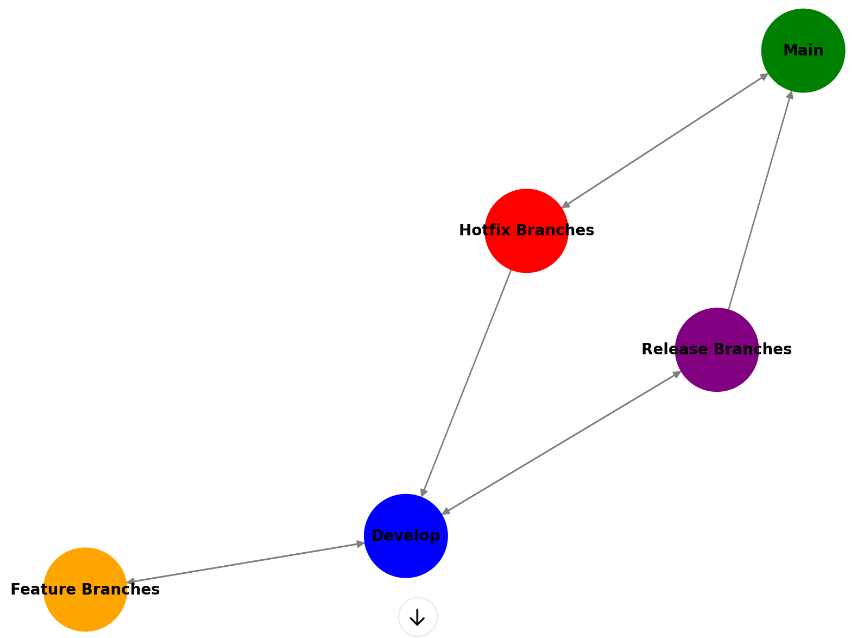
Git Flow revolves around two primary branches that serve as the foundation of the repository. These branches represent the stable, ongoing development process and the production-ready codebase.
- Main (or Master) Branch
This branch contains the stable production-ready code. It’s where the latest production releases are tagged, and it should always reflect the state of the project that is live in production. You should only merge into the main branch when you’re deploying to production. All releases are tagged with version numbers here (e.g., v1.0.0, v1.1.0). Typically, it’s named main or master, depending on your preference or the Git provider’s default.
- Develop Branch
This branch serves as the integration branch for ongoing development. It holds all the code that’s been merged and tested and is considered the most up-to-date version of the next release. Developers commit their changes to feature branches, and once they are finished, they merge them into develop. When the code in develop is stable and ready for release, it will be merged into the main branch. By default, this branch is named develop.
Supporting Branches in Git Flow
Git Flow also uses supporting branches to manage specific tasks like new features, releases, and hotfixes. These are where most of the action happens during the development cycle.
- Feature Branches
These branches are used to develop new features or changes. Feature branches are typically created off the develop branch and are merged back into develop once the feature is complete. Feature branches are named according to the feature being developed, e.g., feature/user-authentication or feature/payment-gateway. This helps easily identify the purpose of each branch.
When starting a new feature, create a branch from
develop.Work on the feature and commit changes regularly.
Once complete, merge the feature back into the
developbranch.
After a feature is merged, it is important to rebase the feature branch with develop to guarantee there are no conflicts.
- Release Branches
When a certain set of features is ready for release, but additional testing, bug fixes, or preparation for deployment is needed, a release branch is created. This branch helps isolate the final stages of development from ongoing feature work in develop. Typically named release/1.0.0, release/2.0.0, etc., based on the version number of the release.
When
developis stable and ready for release, a release branch is created.The release branch is used for last-minute fixes, preparing documentation, and adjusting configuration files.
After testing, the release branch is merged into both
main(for deployment) anddevelop(to ensure any final changes are reflected in future development).
Once the release is completed and merged into main, it’s tagged with the release version (e.g., v1.0.0). It is then merged back into develop to provide any changes made during the release process are incorporated into the ongoing development.
- Hotfix Branches
Hotfixes are used to quickly patch bugs in production. When critical issues are discovered in the main branch (e.g., security vulnerabilities or bugs affecting users), a hotfix branch is created from main to address the issue immediately. Typically named hotfix/bug-fix, e.g., hotfix/security-patch.
A hotfix is created directly from the
mainbranch.The necessary changes have been made and committed to the hotfix branch.
Once the fix is complete, the hotfix branch is merged back into both
main(for deployment) anddevelop(to secure future development, includes the fix.)
Hotfixies are typically fast, providing a quick fix without disturbing ongoing feature development. Once merged, the hotfix branch is deleted.
Git Flow Workflow in Action
Here is an example of how a typical Git Flow workflow would unfold:
Start with a
developbranch: This is the main development branch. All work begins here, with new features being developed in their own branches.Create a feature branch from
developfor each new feature: Developers work on isolated branches for individual features or changes. Each branch is frequently merged back intodevelopafter completing a feature.Create a release branch when
developis stable and ready for release. This branch prepares the code for production. It is used for final testing, bug fixes, and release-related tasks.Merge the release branch into
mainand tag it: Once the release branch is stable, it is merged intomain, tagged with a version, and deployed.Create hotfixes if needed: If bugs are found in production, a hotfix branch is created directly from
mainto fix them.
Git Flow provides clear guidelines for how to work on different types of changes and helps to ensure that the master branch always contains stable, tested code.
It’s important to note that Git Flow is one of the many branching models that can be used with Git, and it may not be the best fit for every team or project. It’s a great starting point for teams new to Git, but as the team and the project grow, it’s important to re-evaluate and see if it still fits the team’s needs.
Comparing Git Branching Strategies
Picture this: You are leading a development team, and everyone is pushing code simultaneously. Without a clear branching strategy, your codebase becomes a tangled mess of conflicts, broken builds, and frustrated developers. Sound familiar? If you have ever found yourself in this situation, you are not alone.
A branching strategy is your team’s roadmap for managing code changes, collaborating effectively, and shipping quality software. It’s essentially a set of rules that guide how developers interact with a shared codebase, determining when to create branches, how to merge changes, and how to maintain code stability throughout the development process.
But it’s more than just rules. A good branching strategy aligns with how your team works your release cycles, QA workflows, CI/CD pipelines, and even how often you hotfix to production. Without one, you will likely end up firefighting merge conflicts during crunch time or accidentally pushing half-baked code to production.
In this section, we will break down the most popular branching strategies, when to use them, and how to pick the right one based on your team size, workflow, or development style. Whether you are building solo or working with a fast-moving squad, having a solid branching strategy will make collaboration smoother and releases far less painful.
Why Your Team Needs a Branching Strategy
Think of branching strategies as traffic rules for your codebase. Without them, you are asking for chaos on the digital highway when your developers ship code every day.
Here’s why a solid branch strategy matters:
Enhanced Collaboration: Branching allows multiple developers to work simultaneously without stepping on each other’s toes. Each developer can create their own isolated workspace while staying connected to the main project. No more waiting for someone to finish a task before you can start yours.
Risk Mitigation: By isolating new features, bug fixes, or experimental code in separate branches, you protect your main codebase from instability. Your production branch stays clean and deployable, while innovation continues safely in parallel.
Organised Workflow: A well-defined branching model prevents the dreaded merge-hell, those nightmare situations where code conflicts pile up and break the build. It brings structure to how changes are integrated and released.
Quality Control: Most branching strategies incorporate pull requests, reviews, and CI pipelines, making sure every change is reviewed and tested before being deployed to production. This leads to cleaner code, fewer bugs, and more confidence in every deploy.
Let’s dive into the most popular branching strategies and see which one might be the perfect fit for your team.
GitFlow
Originally introduced by Vincent Driessen in 2010, GitFlow is one of the most structured and widely adopted branching strategies for managing complex projects. It’s designed around formal release cycles, making it a strong choice for teams that value process, stability, and long-term maintenance.
How GitFlow Works
GitFlow defines five core branches, each with a specific purpose:
main— Contains production-ready code. Every commit here is a stable release.develop— The integration branch where new features are merged before they’re ready to go live.feature/*— For building out new functionality. Branches off fromdevelopand merges back into it.release/*— Used to prep a new version for production. Created fromdevelopand eventually merged into bothmainanddevelop.hotfix/*— For urgent fixes on production. Created frommain, then merged back into bothmainanddevelop.

When To Use GitFlow
GitFlow is a great fit if:
Your team follows scheduled release cycles.
You need to maintain multiple versions (e.g., patch v1.x while working on v2.x).
You have formal QA or staging environments.
Your project has complex release management or compliance requirements.
Props of GitFlow
Clear separation of concerns across features, releases, and hotfixes
Ideal for parallel development across different product versions
Structured workflow enforces discipline and quality control
Predictable release cycles with designed staging periods
Cons of GitFlow
Adds complexity, not ideal for small teams or fast-moving startups
Not suited for continuous deployment: GitHub Flow or trunk-based is better for that.
Can result in long-lived branches, increasing the risk of merge conflicts
Slows down delivery due to multiple approval stages and manual coordination
GitFlow is powerful, but it’s a heavyweight. If your team thrives on structure and you manage multiple release versions, GitFlow will serve you well. But, if speed and simplicity are your top priorities, consider something leaner.
GitHub Flow
If GitFlow is all about structure and process, GitHub Flow is its minimalist cousin. This strategy keeps things simple, just one main branch and short-lived feature branches. It is designed for teams that ship fast and often, especially those embracing continuous deployment.
How GitHub Flow Works
This workflow is refreshingly straightforward.
Create a feature branch from
mainPush commits to the feature branch
Open a pull request for code review and automated tests
Once approved, merge back to
mainDeploy immediately (optional but encouraged)
Everything in main should always be production-ready.

When To Use GitHub Flow
GitHub Flow is ideal if:
Your team practices continuous deployment
You have strong automated testing in place
You ship frequently, small releases
You are working in a small to mid-sized team.
Props of Github Flow
Simple and intuitive to adapt, with no complex branching rules
Perfect for rapid iteration and a fast feedback loop.
Plays well with CI/CD pipelines
Encourages frequent integration, reducing big-bang mergers.
Cons of GitHub Flow
Not designed for multiple production versions or LTS support
In large teams, it can result in frequent merge conflicts
No formal release staging or QA branching
Requires strong test automation to avoid pushing bugs to production
GitHub Flow is lean, fast, and DevOps-friendly. If your team values speed over ceremony and has good CI/CD hygiene, this model will feel like second nature.
GitLab Flow
GitLab Flow is a hybrid strategy that builds on GitFlow and GitHub Flow but brings environments and development workflows into a mix. It was introduced by GitLab to better connect development branches with deployment environments, making it particularly useful in projects with a clear DevOps pipeline.
How GitLab Flow works
Production Branch Model
Developers create feature branches from
mainordevelopMerge back into the mainline when complete
Tag releases and deploy from
mainto environments
Environment-Based Model
Each environment (e.g.
pre-prod,staging,production) has a dedicated branchMerges promote changes from lower to higher environments
You can also combine this with issue tracking, where branches directly map to issues or epics (feature/123-login-page).

When to Use GitLab Flow
You want to map branches to environments or deployments
You use GitLab CI/CD pipelines and want to keep them tightly integrated
Your team needs flexibility, but also structure between releases
Pros of GitLab Flow
Tightly integrates with CI/CD and DevOps tooling
Supports both continuous delivery and versioned releases
Encourages better traceability (commits linked to issues, merges to environments)
Cons of GitLab Flow
It can be confusing for beginners due to multiple models
Needs strict discipline to avoid inconsistencies across the environment branches
GitLab Flow is highly adaptable and DevOps-friendly. If you use GitLab and want your Git branching to reflect your deployment lifecycle, this is your go-to.
Environment Branching
Environment Branching is a strategy where each deployment environment (like dev, qa, staging, prod) has its branch. Teams using this model push code from one environment branch to the next as it progresses through the pipeline.
How Environment Branching Works
Developers work on
dev, test onqa, stabilise instaging, and deploy fromprodPromotions happen via merging between branches:
dev→qa→staging→prod

When to Use Environment Branching
You’re working with legacy systems or manual promotion processes
Your CI/CD tooling is limited or non-existent
You want full control over what gets pushed to each environment
Pros of Environment Branching
Very explicit control over deployments
Simple to understand in legacy or manual release workflows
Cons of Environment Branching
High risk of divergence between environments
Code may behave differently in each branch if not carefully synchronised
Difficult to scale with modern CI/CD practices
Anti-pattern in most modern DevOps setups
Environment Branching gives you control, but at a cost. It’s rarely recommended for modern teams and should generally be avoided unless necessary.
Trunk-Based Development
Trunk-Based Development (TBD) is the go-to strategy for high-performing engineering teams that deploy multiple times a day. It’s simple at the surface but demands real discipline underneath. The idea? Everyone works off a single branch, no long-lived branches, no complex release trees. Just fast commits and faster feedback.
How Trunk-Based Development Works
There’s one main branch, often called main or trunk. All development happens here.
Developers commit directly to
main, often multiple times per day.Changes are small, incremental, and backed by automated tests.
Incomplete features are hidden behind feature flags, so code can ship without being user-visible.

When to Use Trunk-Based Development
This strategy works best if:
Your team follows continuous integration religiously.
You have a strong automated testing setup (unit + integration + end-to-end).
You’re building SaaS products or anything that updates frequently.
Your team is experienced with feature flagging and CI/CD tools.
Pros of Trunk-Based Development
No more painful merges, everyone works on the same code path.
Encourages true continuous integration and early bug discovery.
Delivers the fastest feedback loops from dev to prod.
Simplifies the workflow, no juggling of multiple active branches.
Cons of Trunk-Based Development
Requires robust testing to avoid breaking production.
Not ideal for large, monolithic features (unless they’re behind flags).
You’ll need to manage feature flags carefully to avoid technical debt.
Demands a high level of discipline across the team — sloppy commits will hurt.
Trunk-Based Development is fast, clean, and CI/CD friendly, but it’s not for the faint of heart. If your team is mature, test-driven, and ships frequently, TBD can supercharge your workflow.
Release Branching
If your product has long-term users, multiple versions in the wild, and strict release schedules, Release Branching is your secret weapon. This strategy helps you isolate each major release so you can squash bugs, patch security issues, and ship updates without slowing down future development.
How Release Branching Works
The idea is simple:
When you’re ready to stabilise a version for release, create a release branch from your mainline (
mainordevelop).All bug fixes and release-specific tweaks go into this branch.
Meanwhile, the
mainbranch stays open for ongoing feature development.Once the release is finalised, it gets tagged and deployed, and if needed, hotfixes can be applied directly to this release branch.
Example branches might look like: release/v2.0, release/v2.1.1, etc.

When to Use Release Branching
You’ll benefit from this model if:
You support multiple product versions simultaneously (e.g., v1.x, v2.x).
Your releases are tied to deadlines (quarterly, client-based, etc.).
You need to provide long-term support or hotfixes for older versions.
You have a formal stabilisation and QA process before every release.
Pros of Release Branching
Clean isolation between feature development and stabilisation work.
Supports parallel development and maintenance efforts.
Great for version tracking and rollback in production environments.
Ideal for products that require long-term support (LTS).
Cons of Release Branching
It can get complex with many active branches to maintain.
Requires disciplined merge practices to sync fixes back into
main.Easy to fall into branch proliferation, where every minor version lives forever.
Release Branching gives you control and stability across versions. It’s not the fastest strategy, but for teams juggling support and innovation, it brings much-needed order.
Feature Branching
Feature Branching is probably the most widely used and easiest-to-understand strategy. It’s the default mental model for most developers — create a branch for each new piece of work, build in isolation, and merge back when you’re done. Simple, effective, and foundational to many modern Git workflows.
How Feature Branching Works
Start by branching off from
main(ordevelop) to work on a specific feature or bug fix.You commit changes to this branch until the work is complete.
Once reviewed and tested, the branch is merged back — typically via a pull request.
Branches are usually named like
feature/login-formorbugfix/payment-error.

When to Use Feature Branching
Feature Branching is a solid choice when:
Your team is new to Git workflows and needs a gentle learning curve.
You want to isolate features or experiments without risk to mainline stability.
You value clear ownership of features or fixes.
Your project has medium complexity, without too many parallel changes.
Pros of Feature Branching
Provides clear isolation between features, reducing the risk of accidental interference.
Super easy to adopt and understand, great for onboarding teams.
Encourages better code reviews through pull request workflows.
Offers a flexible foundation that can scale into more advanced strategies (like Git Flow or GitHub Flow).
Cons of Feature Branching
It can result in long-lived branches if not merged frequently.
Integration challenges arise when multiple feature branches are merged after diverging for too long.
Potential for merge conflicts, especially on fast-moving teams with overlapping work areas.
Feature Branching is the go-to starting point for most teams. It offers clarity and control, but needs discipline to avoid merge headaches down the road.
Forking Workflow
When you’re running an open source project, letting just anyone push to the main repo isn’t an option. That’s where the Forking Workflow comes in. It’s built for scale, safety, and distributed collaboration, which is why it’s the default model used on GitHub for open source contributions.
How Forking Workflow Works
A contributor forks the main repository, creating their copy on the server (usually GitHub).
They clone their fork locally, create a feature or fix branch, and commit changes.
Once ready, they open a pull request back to the original repository (commonly called
upstream).Maintainers review, request changes, and decide whether to merge.
This model gives project maintainers full control while still allowing anyone to contribute.

When to Use Forking Workflow
Consider forking if:
You’re running an open-source project with external contributors.
You want strict control over what enters the main codebase.
Your team is distributed or made up of untrusted/external developers.
You expect a high volume of pull requests from the community.
Pros of Forking Workflow
No write access required for contributors, keeps your main branch safe.
Full control stays with project maintainers.
Scales beautifully with large numbers of contributors.
The de facto standard for open source collaboration.
Cons of Forking Workflow
Slightly more complex setup for new contributors (fork, clone, sync, pull request).
Overkill for small, trusted internal teams adds unnecessary friction.
Requires understanding of
originvsupstreamremotes, which can trip up beginners.
Forking Workflow is purpose-built for open source. It trades simplicity for control and security, exactly what you need when anyone on the internet can submit code.
Choosing the Right Strategy for Your Team
Picking the right branching strategy isn’t a one-size-fits-all decision. It depends on how your team works, what you’re building, and how often you ship.
Here are some key factors to guide your choice:
Team Size
Small teams (2–5 developers): GitHub Flow or Trunk-Based Development tends to work best, fewer branches, faster iteration.
Larger teams: GitFlow or Release Branching provides the structure needed for coordination, especially across multiple squads.
Release Frequency
Deploying daily or multiple times per day? Go with GitHub Flow or Trunk-Based; they’re designed for speed.
Shipping on a schedule (e.g., quarterly releases)? GitFlow or Release Branching gives you the stability and process control you need.
Product Complexity
Simple apps or MVPs: Keep it lightweight with GitHub Flow.
Complex, enterprise-grade systems: Benefit from GitFlow’s or Release Branching’s separation of concerns.
Team Experience
New teams: Start with Feature Branching or GitHub Flow — simple and easy to grasp.
Mature teams: Can evolve toward Trunk-Based or GitFlow as tooling and CI/CD processes mature.
Compliance Requirements
- If you’re in a regulated industry (finance, healthcare, etc.), you’ll likely need the formal approval gates and documentation trail offered by GitFlow or Release Branching.
For more detailed explanations about the difference between those branching strategies. Check out those articles: Comparing Git Branching Strategies, Collaborative Git Workflows
The Only Git Branching Strategy That Works in Real Teams
After years of messy merges, broken main branches, and endless “quick fixes,” I’ve found one branching model that consistently works — not in theory, but in real-world engineering teams with deadlines, pressure, and humans.
Introduction: Every Team Thinks They Have a Git Strategy — Until They Don’t
If you’ve worked on even one engineering team in your life, you already know this:
Git chaos isn’t caused by Git.
It’s caused by people.
Developers forget to rebase.
Long-lived branches drift for weeks.
Hotfixes magically appear in production without making it to main.
Someone merges half-finished work because “the sprint was ending anyway.”
And yet, every team proudly claims they “follow GitFlow,” or they “do trunk-based development,” or they “use feature branches with pull requests.” In practice? Most teams follow a chaotic cocktail of all three — sprinkled with confusion, tribal knowledge, and Slack messages like:
“Wait, which branch should I open the PR against?”
After a decade of working across startups, agencies, enterprise teams, and open-source projects, I’ve seen one branching strategy succeed more consistently than anything else:
👉 Short-Lived Feature Branches + a Protected Main Branch + Continuous Integration
It sounds almost… disappointingly simple.
But it works — because it respects developer habits, real-world constraints, and the natural messiness of software teams.
Let’s break it down.
Why Complex Branching Models Fail in Real Teams
Before we talk about what works, we need to talk about what fails — because the “why” is what makes the “how” stick.
- GitFlow is great on paper and miserable in reality
GitFlow gives you:
A
developbranchA
mainbranchFeature branches
Release branches
Hotfix branches
Occasional existential crisis branches
The idea is to isolate work and organize releases.
The reality? Teams struggle to keep everything in sync.
Most GitFlow projects slowly devolve into:
“Where does this go again?”
“Did we merge this into
developor only intomain?"“Why is the release branch 45 commits behind?”
The overhead is too high. The cognitive load is too high.
And when a branching model requires this much discipline, it collapses.
- Trunk-Based Development fails when teams don’t have instant CI
In true trunk-based development (TBD):
Everyone commits to
maindailyVery small batches
Strict CI gating
Feature flags everywhere
This works if you’re Google.
Or Netflix.
Or any team with god-tier tooling.
But in normal teams?
PR reviews take time
CI pipelines are slow
Partially complete work can’t be safely merged
Everyone fears “breaking main”
So developers start creating temporary branches…
which become long-lived branches…
which breaks TBD.
- Long-lived branches kill velocity every single time
The longer a branch lives, the more painful it becomes:
Bigger PRs
More merge conflicts
More forgotten context
More code that “looked fine last week”
This is how you get The Merge From Hell™.
Nothing slows teams down more reliably.
The Branching Strategy That Actually Works
Here it is — the model I’ve seen succeed across 30+ teams:
Short-lived feature branches → Pull Request → CI checks → Merge to a fully protected
main→ Deploy automatically.
Some call it “Feature Branching.”
Some call it a “lightweight GitHub Flow.”
I call it “The Only Strategy Humans Can Follow.”
Let’s break it into parts.
- A Single Source of Truth:
main
main isn't just another branch.
It’s The Branch No One Touches.
Rules:
No direct pushes
Only merge via pull requests
All merges must pass CI
All merges must pass at least one code review
mainalways deployable
If main is always stable, everything else becomes simpler:
Releases are predictable
Hotfixes are trivial
Rollbacks are instant
Developers trust the codebase
A safe main creates a less anxious engineering culture.
- Short-Lived Feature Branches
Every task — big or small — gets a branch:
feature/login-page
bugfix/payment-timeout
chore/refactor-header
experiment/new-cache
The branch lives for days, not weeks.
Why this works:
Easy PR reviews
Small changes minimize conflicts
Fast merges keep code fresh
Better psychological momentum (finishing things feels good)
If a branch lives more than 5–7 days, it’s a smell.
- Frequent Sync with
main
Don’t wait until the end to sync.
Developers should rebase or merge main frequently:
Avoid huge conflicts
Stay up to date with teammate changes
Keep PRs small and clean
Your pull request shouldn’t resurface 80 old commits from last month.
- Pull Requests with Real Discussions
PRs are where engineering culture happens.
A good PR is:
Small
Focused
Contextual (what + why)
Easy to review in <10 minutes
A bad PR is:
900 lines
Multiple unrelated changes
Described with “minor fixes”
Reviewed only when someone gets tired of waiting
PRs should be treated as collaborative conversations, not bureaucratic roadblocks.
- CI as the Uncompromising Gatekeeper
Humans are smart.
Git is smart.
Your CI pipeline is smarter.
Every PR must pass:
Linting
Unit tests
Integration tests
Security checks
Build checks
CI enforces discipline even when the team gets busy.
CI is the team member who never sleeps and never forgets.
- Automatic Deployment from
main
This is the secret weapon.
Don’t create release branches.
Don’t manually cherry-pick fixes.
Don’t keep half-finished features hidden.
Just deploy main.
With this:
Releases become boring (a good thing)
Hotfixes become trivial
Developers gain confidence
If you want a release process:
Tag versions (
v2.1.0)Maintain changelogs
Let automation handle the boring parts
What About Hotfixes?
Hotfixes are simple:
hotfix/payment-crash
You branch from main, fix it, open a PR, merge, deploy.
Then — and this is the part most teams forget —
merge main back into any in-progress branches.
No more “the hotfix was never merged into develop.”
Why This Model Works When Everything Else Fails
Simple:
It reduces cognitive load.
Most branching strategies fall apart because they assume developers will:
Read long documentation
Follow complex rules
Remember obscure merge paths
Coordinate manually across teams
This model succeeds because it works even when people are:
Tired
Busy
Rushing a deadline
Switching between tasks
Joining mid-sprint
Working across time zones
It’s the only model I’ve seen scale from 2-person startups to multi-team orgs without breaking.
How to Transition Your Team to This Strategy
Start with three simple rules:
Rule 1: No one pushes to main. Ever.
Make it a protected branch.
Rule 2: Every task gets a branch and a PR.
Small, focused, easy to review.
Rule 3: CI must pass before merging.
Non-negotiable.
Then gradually introduce:
Feature flags
Automatic deployments
Better test coverage
PR templates
Branch naming conventions
Do it slowly.
Habits take time.
But the payoff is enormous.
Automated App Versioning
Imagine a software without versioning, any change to an application would be a chaotic leap into the unknown. Developers wouldn’t know if a new feature was added, a bug fixed, or if the application would ever run properly. Versioning provides clarity and structure, offering a roadmap for both developers and users.
In the intricate dance of versioning, each number tells a story, a story that extends beyond development and seamlessly interwines with the software testing cycle.
Application versioning isn’t just a formality; it’s a strategic guide through the intricate phases of the software testing cycle. From alpha to release candidates (RC) and hotfixes, versioning ensures systematic testing and meticulous tracking of changes.
Why does versioning matter?
Versioning serves as a critical foundation for a seamless and organized workflow. Here’s why it matters:
Traceability: Versioning provides a clear trail of changes, allowing teams to trace back and understand the evolution of the software.
Communication: Clear version numbers act as a universal language, facilitating communication among developers, testers, and stakeholders.
Coordination: Acts as a coordination mechanism, ensuring everyone involved is on the same page regarding the current state of the software.
Testing Efficiency: In the testing lifecycle, versioning enables efficient testing by distinguishing between alpha, beta, and release candidates.
Bug Tracking: Facilitates effective bug tracking, making it easier to identify when an issue was introduced and which changes are associated.
Stability Assurance: Versioning helps ensure the stability of releases by clearly indicating backward-compatible and incompatible changes.
Versioning, therefore, is not just a matter of differentiation between what is in the release and what is already deployed to production. It’s a strategic necessity in the ever-evolving realm of software development. It provides clarity, promotes collaboration, and enhances the overall efficiency of the development cycle.
Semantic Versioning (SemVer) Explained
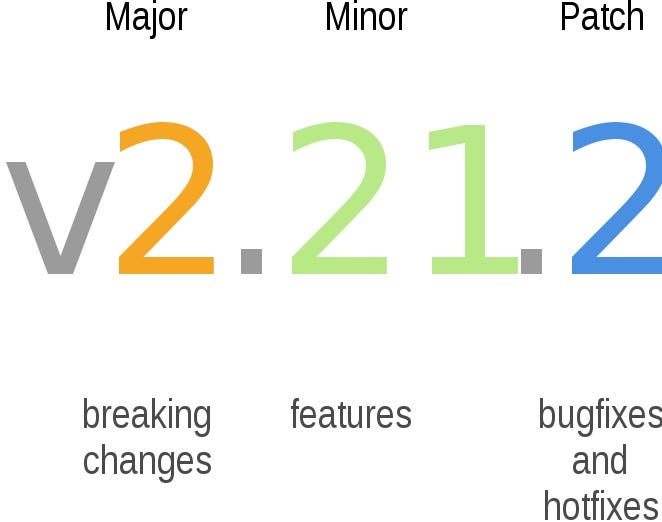
Semantic Versioning (SemVer) is a standardized versioning system that precisely communicates changes in the software release. The version number in SemVer comprises three segments: Major, Minor, and Patch.
Major Version (X.0.0): Significant, backward-incompatible changes. Incremented for breaking changes.
Example: Current version: 1.2.3, After breaking change: 2.0.0
Minor Version (X.Y.0): Backward-compatible additions or enhancements. Incremented for new features.
Example:Current version: 1.2.3, After adding a feature: 1.3.0
Patch Version (X.Y.Z): Backward-compatible bug fixes. Incremented for bug patches.
Example:Current version: 1.2.3, After fixing a bug: 1.2.4
Pre-release Version: Identified by appending a hyphen and a series of dot-separated identifiers following the patch version. Denoted as “alpha,” “beta,” etc.
Example: Alpha release: 1.2.3-alpha.1, Beta release: 1.2.3-beta.2
Numeric Metadata: Identified by appending a plus sign and a series of dot-separated numeric identifiers following the patch or pre-release version.Not considered for version precedence.
Example: With numeric metadata: 1.2.3-alpha.1+42 . Basically used as a build number.
Semantic Versioning enables clear communication about the nature of changes in the release, fostering predictability and ensuring compatibility across different versions of a software project.
Understanding Semantic Versioning aids in transparently conveying changes within a project. Now, check out this article to explore how to seamlessly integrate SemVer into the Git Workflow using GitVersion.
Squash Commits
When you squash commits, you combine 2 or multiple commits into a single commit. This is useful when you have multiple small commits that are related to the same feature or fix, and you want to simplify your commit history. Squashing commits also makes it easier to review your changes and to track down bugs.
How to Squash Commits
Here are the steps to squash commits in a git repository using the git CLI:
Determine how many commits you want to squash. You can use the
git logcommand to see a list of your commits and their hashes.Use the
git rebase -i HEAD~Ncommand to open the interactive rebase tool, whereNis the number of commits you want to squash.In the text editor that opens, replace “pick” with “squash” or “fixup” for each commit you want to squash. “Squash” will combine the commit with the one before it, while “fixup” will combine the commit and discard its commit message.
Save and exit the editor by pressing
Ctrl + X, thenY, and finallyEnter.If you have conflicts, resolve them by editing the conflicted files, staging the changes with
git add, and then runninggit rebase --continue.Force push the changes to the remote branch with
git push -f.
Modern Git Commands
Git, however, introduced many features since then, and using them can make your life so much easier, so let’s explore some of the recently added, modern git commands that you should know about.
Switch
New since 2019, or more precisely, introduced Git version 2.23, is git switch which we can use to switch branches:
git switch other-branch
git switch -  # Switch back to previous branch, similar to "cd -"
git switch remote-branch  # Directly switch to remote branch and start tracking it
Well, that’s cool, but we’ve been switching branches in Git since forever using git checkout, why the need for a separate command? git checkout is a very versatile command - it can (among other things) check out or restore specific files or even specific commits, while the new git switch only switches the branch. Additionally, switch performs extra sanity checks that checkout doesn't, for example, switch would abort operation if it would lead to loss of local changes.
Restore
Another new subcommand/feature added in Git version 2.23 is git restore, that we can use to restore a file to the last committed version:
# Unstage changes made to a file, same as "git reset some-file.py"
git restore --staged some-file.py

# Unstage and discard changes made to a file, same as "git checkout some-file.py"
git restore --staged --worktree some-file.py

# Revert a file to some previous commit, same as "git reset commit -- some-file.py"
git restore --source HEAD~2 some-file.py
The comments in the above snippet explain the workings of various git restore. Generally speaking git restore replaces and simplifies some of the use cases of git reset and git checkout which are already overloaded features. See also this docs section for comparison of revert, restore and reset.
Sparse Checkout
The next one is git sparse-checkout, a little more obscure feature that was added in Git 2.25, which was released on January 13, 2020.
Let’s say you have a large monorepo, with microservices separated into individual directories, and commands such as checkout or status are super slow because of the repository size, but maybe you really just need to work with a single subtree/directory. Well, git sparse-checkout to the rescue:
$ git clone --no-checkout https://github.com/derrickstolee/sparse-checkout-example
$ cd sparse-checkout-example
$ git sparse-checkout init --cone  # Configure git to only match files in root directory
$ git checkout main  # Checkout only files in root directory
$ ls
bootstrap.sh  LICENSE.md  README.md

$ git sparse-checkout set service/common

$ ls
bootstrap.sh  LICENSE.md  README.md  service

$ tree .
.
├── bootstrap.sh
├── LICENSE.md
├── README.md
└── service
    ├── common
    │   ├── app.js
    │   ├── Dockerfile
    ... ...
In the above example, we first clone the repo without actually checking out all the files. We then use git sparse-checkout init --cone to configure git to only match files in the root of the repository. So, after running checkout, we only have 3 files rather than the whole tree. To then download/checkout a particular directory, we use git sparse-checkout set ....
As already mentioned, this can be very handy when working locally with huge repos, but it’s equally useful in CI/CD for improving the performance of a pipeline, when you only want to build/deploy part of the monorepo and there’s no need to check out everything.
For a detailed write-up about sparse-checkout see this article.
Worktree
Git Worktree
- What is a Git Worktree
Git worktree is a feature in Git. Before we see Git worktree, let us see the normal Git flow.
The normal Git flow
You have one working folder.
You have one active branch.
Switching branches changes all files in that folder
my-app/
├── src/
├── README.md
└── .git/
When you run git checkout “feature-abc”, the whole folder switches to that branch.
The Git work tree flow
Work trees let you have many working folders from the same repo.
Each folder can have its own branch.
You can work in all of them at the same time without switching anything.
In simple words, you can work in parallel without switching branches.
my-app/
├── src/
├── README.md
└── .git/

my-app-feature-a/          ← Worktree 1 (feature-a branch)
├── src/
├── README.md
└── .git                   ← File points to main repo

my-app-feature-b/          ← Worktree 2 (feature-b branch)
├── src/
├── README.md
└── .git                   ← File points to main repo

- Git Worktree with Git Clone

The points above explain the concept. But the commands make it crystal clear.
This is what we do in a normal clone and what we do when we use work trees.

- Git Worktree Commands
There are a few basic Git work tree commands you will use often.
Create Worktree
# Create a work tree and a new branch
git worktree add <worktree-path> -b <new-branch-name>

# Example
git worktree add ../add-header -b feature/add-header


# Create a work tree from an existing branch
git worktree add <worktree-path> <branch-name>

# Example
git worktree add ../ui-changes feature/ui-changes
List worktree
# list all active work trees
git worktree list
Remove Worktree
# remove a work tree
git worktree remove <worktree-path>

# Example
git worktree remove ../add-header
One Branch Per Worktree Rule
Git has a simple rule for work trees. One branch can live in only one work tree at a time.
If the branch is already used in a work tree, Git will block you from using it again. See the screenshot below.

Bisect
Last but not least, git bisect, which isn't so new (Git 1.7.14, released on May 13, 2012), but most people are using only git features from around 2005, so I think it's worth showing anyway.
As the docs page describes it: git-bisect - Use binary search to find the commit that introduced a bug:
git bisect start
git bisect bad HEAD  # Provide the broken commit
git bisect good 479420e  # Provide a commit, that you know works
# Bisecting: 2 revisions left to test after this (roughly 1 step)
# [3258487215718444a6148439fa8476e8e7bd49c8] Refactoring.

# Test the current commit...
git bisect bad  # If the commit doesn't work
git bisect good # If the commit works

# Git bisects left or right half of range based on the last command
# Continue testing until you find the culprit

git bisect reset  # Reset to original commit
We start by explicitly starting the bisection session with git bisect start, after which we provide the commit that doesn't work (most likely the HEAD) and the last known working commit or tag. With that information, git will check out a commit halfway between the "bad" and "good" commit. At which point we need to test whether that version has the bug or not, we then use git bisect good to tell git that it works or git bisect bad that it doesn't. We keep repeating the process until no commits are left and git will tell us which commit is the one that introduced the issue.
I recommend checking out the docs page that shows a couple more options for git bisect, including visualizing, replaying, or skipping a commit.
Cherry-Picking Commits
Need a specific commit from another branch? Cherry-picking lets you apply it to your current branch without merging the entire branch.
How to use it:
git cherry-pick <commit-hash>
Why it’s cool:
It gives you the flexibility to bring in individual features or fixes without merging all the other changes from the source branch.
Pro tip:
This is especially useful when you need to backport bug fixes or small features.
Blame a Line of Code
Want to know who wrote a specific line of code? git blame gives you a line-by-line history of who changed what in a file.
How to use it:
git blame <filename>
Why it’s cool:
It’s an easy way to track down who made a change and when, especially when debugging issues.
Pro tip:
Combine this with git log -- <file> to get a more detailed history of changes.
Quick Commit Fix
Forgot to add a file or made a typo in your commit message? git commit --amend lets you update the commit without creating a new one.
git commit --amend
You can fix mistakes instantly without cluttering your commit history.
This is great for squashing small mistakes without polluting your Git log with unnecessary commits.
Tagging a Commit
Tags are useful for marking specific points in your Git history, such as releases.
How to use it:
git tag -a v1.0 -m "Version 1.0 release"
Why it’s cool:
It helps in marking important milestones, making it easy to jump back to a particular version later.
Pro tip:
Use lightweight tags (git tag <tagname>When you don’t need additional metadata.
View All Git Operations (Git Reflog)
The Real Reason Developers Fear Git
Before we dive into the reflog, let’s address an uncomfortable truth:
Most developers don’t trust themselves with Git.
They’ve all lived through at least one horror story:
A branch was accidentally deleted
A rebase gone wrong
A force push that wiped someone’s work
A commit lost in the void, never to be seen again
So people stick to “safe” operations.
They avoid rebasing.
They avoid rewriting history.
They avoid anything that looks like it might ruin the repo.
But here’s the secret senior developers know:
Git is far less delicate than you think — because the reflog remembers everything.
Wait… What Exactly Is the Reflog?
You’ve probably used Git logs:
git log
…but the log only shows reachable commits — the ones still connected to branches or tags.
The reflog (reference log) is different. It records every movement of branch heads, even if commits become “lost” or detached.
Every checkout.
Every reset.
Every branch switch.
Every rebase rewrite.
Every commit that disappears from the log.
Git keeps it all.
Run this:
git reflog
And suddenly you see the real history of your repo — not just the final, polished timeline.
Why Senior Engineers Rely on the Reflog Daily
Senior developers love the reflog because it unlocks something powerful:
1. It makes “dangerous” commands safe
Want to rebase aggressively?
Want to rewrite history?
Want to force-push after cleaning up commits?
Seniors do all of this — because they know they can undo anything.
2. It makes mistakes reversible
Accidentally deleted a branch?
git branch -D feature/payment
No panic.
The reflog has the commit:
git reflog
git checkout -b feature/payment <commit-id>
Fixed.
3. It saves work that you thought you lost forever
Ever reset the wrong branch?
Ever commit something and forget where it went?
Ever stash something and later realize it didn’t apply cleanly?
Reflog keeps all of that.
4. It speeds up debugging
Seniors often ask:
“What commit was I on 20 minutes ago?”
Reflog answers that instantly.
5. It encourages experimentation
When you stop worrying about losing work, something amazing happens:
You explore.
You take risks.
You try new workflows.
You get better at Git.
Squash Commits
Want to clean up your commit history before pushing? Squashing commits lets you combine several into one for a neater history.
How to use it:
git rebase -i HEAD~<number-of-commits>
Why it’s cool:
Squashing makes your commit history look polished and professional, especially when you’re sharing with a team.
Pro tip:
This is ideal for combining multiple small fixes into one clear commit before pushing.
Git Best Practices
The use of the Git tool is crucial for the development process of an application, whether working in a team or individually. However, it’s common to encounter messy repositories, commits with unclear messages that don’t convey useful information, and misuse of branches, among other issues. Knowing how to use Git correctly and following good practices is essential for those who want to excel in the job market.
Stop Breaking Your Codebase: The Git Hooks Nobody Told You About
Automated tests, block secrets, and enforce lean commits before disaster strikes.
When I first discovered Git Hooks, I felt like I had unlocked a hidden superpower in Git. Imagine automating small and repetitive tasks — without needing extra external tools or fancy CI/CD pipelines, right inside your local Git workflow. That’s exactly what Git Hooks let you do.
What Are Git Hooks?
Git Hooks are scripts that Git automatically executes before or after certain events, like committing, pushing, or merging code.
Think of them as a little “guardians“ of your repository. For example:
A pre-commit hook can check your code formatting before a commit is made.
A pre-push hook can run tests before code is pushed to the remote.
A commit-msg hook can enforce commit conventions
Git already provides sample hooks in every repository inside the .git/hooks/ folder. You just need to enable or customize them.
Why GitHooks Matter in The Real World?
In theory, you could ask your team to remember rules like:
“Always format your code before committing.”
“Don’t push without running tests.”
“Follow our commit message convention.”
But in reality, people forget. Deadline creep in, and rules get broken.
Hooks automate these rules, ensuring consistency and saving you from painful mistakes.
Real-World Scenarios & Examples
1. Keeping Code Clean Before Commit
Imagine you’re working on a Python project. The team agreed to use black for formatting, but developers sometimes forget.
Solution: Add a pre-commit hook that auto-formats code before every commit.
# .git/hooks/pre-commit
#!/bin/sh
echo "Running Black formatter..."
black .
git add .
✅ Result: Every commit is properly formatted — no arguments needed in code reviews.
2. Enforcing Commit Message Convention
Let’s say your team uses Conventional Commits. You want commit messages like:
feat: add login API
fix: handle null pointer exception
docs: update README
Solution: Use a commit-msg hook to reject invalid commit messages.
# .git/hooks/commit-msg
#!/bin/sh
commit_msg_file=$1
commit_msg=$(cat "$commit_msg_file")
pattern="^(feat|fix|docs|style|refactor|test|chore):"
if ! echo "$commit_msg" | grep -qE "$pattern"; then
  echo "❌ Commit message invalid! Must follow Conventional Commits."
  exit 1
fi
✅ Result: Developers can’t commit unless they follow the convention.
3. Running Tests Before Pushing
Ever pushed broken code that failed the CI pipeline? Painful.
Solution: Add a pre-push hook that runs tests locally before pushing.
# .git/hooks/pre-push
#!/bin/sh
echo "Running tests before push..."
npm test
if [ $? -ne 0 ]; then
  echo "❌ Tests failed! Push aborted."
  exit 1
fi
✅ Result: Only the tested code reaches the remote repository.
4. Blocking Secrets from Being Committed
A classic mistake: pushing an API key or password to GitHub.
Solution: Add a pre-commit hook that scans for secrets.
# .git/hooks/pre-commit
#!/bin/sh
if git diff --cached | grep -q "API_KEY"; then
  echo "❌ Secret detected! Commit aborted."
  exit 1
fi
✅ Result: Accidental leaks are caught before they leave your machine.
Sharing Hooks with Your Team
By default, hooks live in .git/hooks/ and aren’t version-controlled. To share them with your team:
Create a folder, e.g.
.githooks/Store all hooks there
Set Git to use that directory:
git config core.hooksPath .githooks
Now, everyone using the repo gets the same hooks.
Pro Tip: Use Tools to Manage Hooks
Instead of writing raw shell scripts, you can use tools like:
Husky (for JavaScript projects)
pre-commit (multi-language support)
These make it easier to manage and share hooks across projects. I am regularly using pre-commit tools on every public repository to ensure no .env files are mistakenly pushed, no secrets are shared, code is well formatted, etc. Here is a simplified pre-commit config from one of my repository pacli(personal access CLI tool**)**.
repos:
  - repo: https://github.com/psf/black
    rev: 25.1.0
    hooks:
      - id: black
        args: ["--line-length=120"]

  - repo: https://github.com/pycqa/flake8
    rev: 7.3.0
    hooks:
      - id: flake8
        args: ["--max-line-length=120"]

  - repo: https://github.com/pre-commit/pre-commit-hooks
    rev: v6.0.0
    hooks:
      - id: trailing-whitespace
      - id: end-of-file-fixer
      - id: check-yaml

  - repo: https://github.com/pre-commit/mirrors-mypy
    rev: v1.17.1
    hooks:
      - id: mypy

  - repo: https://github.com/PyCQA/bandit
    rev: 1.8.6
    hooks:
      - id: bandit
Perfect Git Commit Messages
Commit serves as the tangible building blocks of a programmer’s craft. They act as the icing on the cake of code, and when written correctly, they bring substantial value. A well-written commit message becomes indispensable because it provides context; otherwise, a commit message wouldn’t be needed in the first place.
A good commit shows whether a developer is a good collaborator.
A common mistake among developers is treating the Git repository is a backup system. Randomly committing to capture the current state of code can impede your ability to comprehend past changes when checking out the codebase in the future. Commit messages like “WIP”, “Off for lunch”, “End of code for today”, “I am tired AF”, “Happy Weekend Team”, and “First to commit” will only clutter your Git log, making it too difficult to understand the essential commits you have made because none of these messages consists of any additional value.
8 Standard Rules for Writing a Perfect Commit Message
These rules provide guidelines and best practices that ensure your commit messages are properly formatted and convey clear information. While the specific rules may vary based on different resources, the general aim is to enhance the readability and understandability of the commit message within the Git version control system.
- Limit Subject to 50 Characters (Max)
When crafting the subject line of a commit message, it’s advisable to keep it concise and focused. The subject line serves as a quick summary of the commit’s purpose and should ideally be limited to a maximum of 50 characters.
Struggling to fit within the 50-character limit can be indicative of a lack of clarity about the commit’s intent. Commit messages should be concise, clear, and easy to understand on their own. By adhering to this character limit, you are forced to prioritize the most critical information, making it easier for your team and your future self to understand the nature of the change at a glance.
- Capitalize only the first letter of the subject line
When composing a commit message, employ title case by capitalizing the first letter of the subject line, just like writing a concise sentence. Leave the rest of the message, including any additional details, in lowercase.
- Don’t put a period at the end of the subject line
The reason for not ending the subject line with a period is partly historical and partly to maintain a consistent style. The convention is to treat the subject line as the title or the command, which is why it’s written in the imperative mood (e.g., “Add feature” or “Fix bug” rather than “Added feature” or “Fixed bug”). Omitting the period at the end helps reinforce this convention and keeps subject lines concise.
git commit -v -m "Create the Cart Feature with a Nice Animation"
- Put a blank line between the Subject line and the body
While this guideline might appear unusual, it’s rooted in practicality. Many developers employ command-line interfaces for Git, which often lack automatic word wrapping. Consequently, intentional formatting rules have been introduced to ensure consistent and legible commit messages.
git commit -v -m "Create the Cart Feature with a Nice Animation

Body...
"
- Wrap Lines at 72 Characters for the Commit Body
It’s important to clarify that adhering to this guideline isn’t about traditional word wrapping, instead, this practice arises in the consideration that command-line users might experience truncated commit bodies beyond 72 characters.
Most of the time, your message will exceed 72 characters in length. In such cases, it’s advisable to break the text and continue your sentence on the next line, as demonstrated in the commit message below:
git commit -v -m "Create the Cart Feature with a Nice Animation

Enhanced the CSS layout of the cart section, addressing text
alignment issues and refining the layout for improved aesthetics
and readability."
In conclusion, a standard practice for denoting bullet points involves using a hyphen or asterisk, followed by a single space. Additionally, it’s important to maintain a hanging indent to enhance organizational clarity.
- Use the imperative mood
A valuable practice involves crafting commit messages with the underlying understanding that the commit, when implemented, will achieve a precise action. Construct your commit message in a manner that logically completes the sentence “If applied, this commit will…”. For instance, rather than,git commit -m "Fixed the bug on the layout page" ❌, use this git commit -m "Fix the bug on the layout page" ✔
- Explain “What“ and “Why“, but not “How“
Limiting commit messages to “what“ and “why“ creates concise yet informative explanations of each change. Developers seeking to understand how the code was implemented can refer directly to the codebase. Instead, highlight what was altered and the rationale for the change, including what component or area was affected
- Angular’s Commit Message Practices
Angular stands as a prominent illustration of effective commit messaging practices. The Angular team advocates for the use of specific prefixes when crafting commit messages. These prefixes include “chore: ,” “docs: ,” “style: ,” “feat: ,” “fix: ,” “refactor: ,” and “test: .”. By incorporating these prefixes, the commit history becomes a valuable resource for understanding the nature of each commit.
Naming Conventions for Git Branches
When you are working with code versioning, one of the main good practices that we should follow is using clear, descriptive names for branches, commits, and pull requests. Ensuring a concise workflow for all team members is essential. In addition to gaining productivity, documenting the development process of the project historically simplifies teamwork. By following these best practices, you will see benefits soon.
Based on it, the community created a branch naming convention that you can follow in your project. The use of the following items below is optional, but they can help to improve your development skills.
1. Lowercase: Don't use uppercase letters in the branch name, stick to lowercase.
2. Hyphen separated: If your branch name consists of more than one word, separate them with a hyphen. following the kebab-case convention. Avoid PascalCase, camelCase, or snake_case;
3. (a-z, 0-9): Use only alphanumeric characters and hyphens in your branch name. Avoid any non-alphanumeric character;
4. Please, don't use continuous hyphens (--). This practice can be confusing. For example, if you have branch types (such as a feature, bugfix, hotfix, etc.), use a slash (/) instead;
5. Avoid ending your branch name with a hyphen. It does not make sense because a hyphen separates words, and there's no word to separate at the end.
6. This practice is the most important: Use descriptive, concise, and clear names that explain what was done on the branch.
Wrong branch names
fixSidebarfeature-new-sidebar-FeatureNewSidebarfeat_add_sidebar
Good branch names
feature/new-sidebar
add-new-sidebar
hotfix/interval-query-param-on-get-historical-data
Always git pull before working on a new feature
Do this to avoid merge conflicts as much as possible.
Merge conflicts happen when:
2 people are working on the same code in the same file
1 person pushes their code first
When the 2nd person tries to push their code, it conflicts with the code from the first person
In this case, git doesn’t know how to resolve this conflict in changes, and doesn’t want to for fear of causing either one developer to lose progress
As such, git causes a merge conflict — essentially asking the developers to handle the conflicting code themselves
Advantages of running “git pull“ before working on a new feature:
There might still be merge conflicts, but they are likely to contain smaller changes and be more manageable.
You ensure that your local codebase is up to date when you start working on something.
Remember to delete branches after you merge them
In a large project, chances are that devs are expected to create a new branch to work on a new feature. Which is good practice, as this acts as an additional layer of defence against devs accidently screwing up the master branch.
But when you forget to delete their branches after merging, these branches pipe up more and more.
Note — git stores your branches locally in the directory .git/refs/heads
So, what happens when we forget to delete 1000 branches? Git now has 1000 additional unused folders inside .git/refs/heads, which clogs things up and slows things down.
Verdict — remember to delete your branches after you merge them successfully
Git Pruning: How to Keep Your Repository (.git) Clean and Efficient?
As your project grows, your git repository can get cluttered with old, unreachable objects (commits, branches, trees) that no longer serve any purpose. If left unchecked, this clutter can slow things down, take up unnecessary disk space, and make the repo harder to manage.
Recently, in one of the projects I was working on, a 2+ year-old codebase with contributions from many developers, I noticed something strange. Whenever I did a git fetch or git pull, it felt unusually slow. I deep dived into it and realized even after working on the project for just 3 months, my local repo was still holding onto stale branches and commits that were no longer relevant. These were taking up space and could lead to unnecessary conflicts or overhead later.
So, I started researching, and one of the simplest solutions I found was Git Pruning: a clean and easy way to keep your repository tidy and efficient.
What are Git Objects?
Git stores everything, including commits, trees, and blobs, in the .git/objects folder. These objects are 3 types:
Commits: Representing snapshots of your project at different points in time.
Trees: Representing directories and their structure.
Blobs: Representing individual files.
Over time, as you create, modify, and delete files and commits, Git’s internal database can accumulate objects that are no longer referenced by any branch or tag. They’re like files in your Downloads folder that you forgot about, just sitting there taking up space. These objects become “unreachable” and can consume unnecessary disk space.
Example :
Delete branches,
Force-push changes,
Rewrite history with commands like git rebase.
What is Git Pruning?
Git pruning is the cleanup process. It removes these unused objects and keeps your repository clean.
How does it work?
Pruning is part of Git’s garbage collection (git gc). By default, Git waits 7 days before removing unreachable objects, in case you want to recover them. But you can prune right away using:
git gc --prune=now
Basic pruning: Deletes unreachable objects older than 7 days.
Aggressive pruning: Deletes even more, including some objects still in the reflog.
👉 Reflog? It is a git log that tracks all reference updates (like branch changes, HEAD movements) in your local repository. This means whenever you switch branches, reset a commit, or change the HEAD, Git records it in the reflog. It allows you to go back to previous states even if those commits are no longer visible in the current branch history. In simple words, reflog is like an "undo history" in Git; it gives you a way to go back in time.
Why and When to Use Pruning?
Let’s say you’re working on a feature branch called feature/signup.
You commit 10 changes while experimenting.
Later, you realize the history is messy, so you squash your commits and force push the branch.
From your perspective, everything looks fine. You only see the clean squashed commit on GitHub.
But behind the scenes, your local .git/objects folder still contains those 10 old commits. They are unreachable, with no branch points to them, but they’re still taking up space.
Now imagine your teammate clones the repository or fetches/pulls the PR. The repo feels heavier than it should. Fetches take longer. Disk usage keeps growing.
This is when pruning helps:
git gc --prune=now // Prune all objects now

git gc --prune="2025-01-01" //Prune objects older than a specific date

git gc --aggressive --prune=now // For a deeper clean: Aggressive Pruning

⚠️ Alert : It can delete objects you might still need.
After running it, Git clears out those unreachable commits. The .git/objects folder shrinks. Your repository is faster to clone, lighter to push around, and free of stale history.
Before : (You can see how many files are in .git/objects)

Now: Let's run git pruning and clean unreachable objects

After: Just look at the difference, how much useless reference it cleared

Final Thoughts & Questions
1. Is git prune safe to use?
Yes, git prune only removes truly unreachable objects. It won’t delete anything referenced by branches or tags.
2. When should I run git prune?
Force-push and leave behind old commits,
Performing rebases on a repository is cluttered
Delete branches and want to clear their leftovers,
Notice your repo is bigger than it should be.
Repo fetching and pulling take longer than expected
When your project is going through development for a long time
3. What’s the difference between local and remote pruning?
Local pruning removes unreachable objects in your local repository.
Remote pruning removes references from deleted remote branches.
4. What are the commands to remember?
git gc --prune=now → Clean local repo immediately.
git fetch --prune origin → Remove stale remote branches.
git prune --dry-run → Preview before deleting.
Best Git GUIs Compared
Git is a version control system (VCS) that allows you to track the development of a project over time. At the time of Git’s inception in 2005, developers had to use the command line interface (CLI) to manage Git. Learning and using a command line is often extremely difficult task for many developers and in some cases represents a significant barrier of entry for those seeking to leverage the power of Git.
Enter the graphical user interface (GUI), also referred to as a Git Client. A Git GUI is a tool that helps developers visualize their Git repositories and run Git actions with a few simple mouse clicks or keyboard shortcuts.
It’s common for new and seasoned developers to leverage Git UI in their regular workflow. As you learn more about Git and interact in related communities, you will likely notice that some people have very strong opinions about using a GUI vs the CLI. Both tools have significant benefits, and it’s important to remember that you should select the tools that help you write code you are proud of. Millions of developers around the world use Git GUIs to make their lives easier and level up their coding.
Check out this article to figure out which is the best Git GUI.
Git Tips
https://github.com/git-tips/tips
Git Merge vs Git Rebase
When navigating the Git universe for version control, grasping the art of choosing between git merge and git rebase is pivotal for streamlining and organizing code management. Both wield considerable merging prowess, yet appropriateness and impact shimmer in distinct scenarios.
Git Merge
git-merge is a non-destructive operation designed to weave changes from two branches into a harmonious tapestry. It forges a connection between the histories of these branches by crafting a brand new “merge commit“.
Advantages
Preserve Historical Integrity: The merge operation reverently preserves the authentic history of both branches, leaving no tale untold.
Simple and Intuitive Merge: This approach is a friendly gateway for Git novices, offering simplicity and clarity in its operation.
Scenarios To Be Used
git merge shines brightest in team collaborations, where safeguarding a comprehensive history and delineating clear merge points is deemed invaluable.
Git Rebase
git rebaseperforms a graceful dance, placing changes from one branch atop the freshest alterations on another. This intricate process often involves a rhythmic rewriting of the commit history, sculpting it into a more linear narrative.
Advantages
Clean Linear History 📜: Rebase choreographs a symphony of commits, resulting in a pristine and linear project history.
Avoid Redundant Merge Commits🚫🔄: It’s the maestro of minimizing unnecessary merge commits, keeping the melody of your project smooth.
Scenarios to be Used
rebase is the virtuoso when it comes to refining commits on a personal branch or updating a feature branch before unveiling changes to the entire team.
The Golden Rule of Git Re-basing
👑 “Never use git rebase on public branches.” This royal decree stands firm to prevent historical dissonance among team members, averting the cacophony of confusion that may arise from altered histories.
Choosing Between Git Merge and Git Rebase
When faced with the decision of git merge versus git rebase, thought consideration of your work environment and the team’s workflow is key:
For private or nascent feature branches, opting for
git rebasecan be akin to tidying up the stage before a grand performance. It helps maintain a clear and uncluttered history, especially when preparing for a pull request.On the public branch in team collaborations, embracing
git mergeis like choosing the steady path. It’s a safer change, retaining a comprehensive historical record that’s effortlessly comprehensible and traceable for all team members.
https://www.atlassian.com/git/tutorials/merging-vs-rebasing
Undoing Commits & Changes
Git Revert, Checkout, and Reset
These three commands have entirely different purposes. They are not remotely similar.
git revert
This command creates a new commit that undoes the changes from a previous commit. This command adds a new history to the project (it doesn’t modify the existing history).
git checkout
This command checks out content from the repository and puts it in your worktree. It can also have other effects, depending on how the command was invoked. For instance, it can also change which branch you are currently working on. This command doesn’t make any changes to the history.
git reset
This command is a little more complicated. It actually does a couple of different things depending on how it is invoked. It modifies the index (the so-called "staging area"). Or it changes which commit a branch head is currently pointing at. This command may alter existing history (by changing the commit that a branch references).
Using these commands
If a commit has been made somewhere in the project’s history, and you later decide that the commit is wrong and should not have been done, then git revert is the tool for the job. It will undo the changes introduced in the bad commit, recording the “undo“ in the history.
If you have modified a file in your working tree, but haven't committed the change, then you can use git checkout to check out a fresh-from-repository copy of the file.
If you have made a commit, but haven't shared it with anyone else, and you decide you don't want it, then you can use git reset to rewrite the history so that it looks as though you never made that commit.
These are just some of the possible usage scenarios. There are other commands that can be useful in some situations, and the above three commands have other uses as well.
The difference between git pull and git fetch
In the simplest terms, git pull does a git fetch followed by a git merge.
git fetch updates your remote-tracking branches under refs/remotes/<remote>/. This operation is safe to run at any time since it never changes any of your local branches under refs/heads.
git pull brings a local branch up-to-date with its remote version, while also updating your other remote-tracking branches.
From the Git documentation for git pull:
git pullrunsgit fetchwith the given parameters and then depending on configuration options or command line flags, will call eithergit rebaseorgit mergeto reconcile diverging branches.
The difference between HEAD^ and HEAD~ in Git
<rev>~<n>goes backward n parents from rev, selecting the first parent each time.Use
<rev>^<n>to select the n-th immediate parent of the merge commit rev.Use
~most of the time, to go back a number of generations and always choose the first parent of merge commits, commonly what you want.Use
^on merge commits — because they have two or more immediate parents.In my experience, selecting a particular immediate parent of a merge commit by its index order, e.g.,
B^3, is rare. It’s also error-prone. Just use a hash when you can.NOTE:
HEAD~3is equivalent toHEAD~~~andHEAD~1~1~1— butHEAD^2is not equivalent toHEAD^^.
Mnemonics:
Tilde
~is almost linear in appearance and wants to go backward in a straight line.Caret
^suggests a merge commit: an interesting segment of a tree or a fork in the road.
git push origin HEAD
We can use “git push origin HEAD” over “git push origin longass_branch_name”
When we work on a feature, we usually work on a branch. This way, if we accidentally screw up, we screw up only our branch, and not the master branch.
Branch names can get pretty long in larger projects. For instance:
- JIRAPROJECT18001_refactor_this_certain_feature_for_reasons
To push our changes to this branch, we can simply do:

Instead of:

This is just a pain to type out
See a Graph of Your Branches
This command gives you a visual overview of your branch history, making it easier to see merges, branches, and commits.
How to use it:
git log --graph --oneline --all
Why it’s cool:
It’s an at-a-glance view of your project’s structure, especially helpful for understanding complex branch setups.
Conclusion
In conclusion, by integrating these modern command-line tools and applying best practices of Git into your workflow, you can enhance your productivity and focus on crafting software that creates real business value.
References
https://levelup.gitconnected.com/git-and-workflow-with-gitflow-5f9f76530835
https://medium.com/@Adem_Korkmaz/git-flow-a-detailed-overview-24e0dfa28f7a
https://medium.com/thecapital/understanding-git-workflows-and-why-git-flow-is-the-best-0e5f4c4f36c3
https://www.freecodecamp.org/news/how-to-write-better-git-commit-messages/
https://dev.to/basementdevs/be-a-better-developer-with-these-git-good-practices-2dim
https://levelup.gitconnected.com/top-30-git-commands-you-should-know-to-master-git-cli-f04e041779bc
https://levelup.gitconnected.com/14-git-things-i-regret-not-knowing-earlier-20956c192b2b
https://blog.stackademic.com/20-git-command-line-tricks-every-developer-should-know-bf817e83d6b9
https://medium.com/@jake.page91/the-guide-to-git-i-never-had-a89048d4703a
https://gist.github.com/eashish93/3eca6a90fef1ea6e586b7ec211ff72a5?ref=dailydev
https://blog.prateekjain.dev/the-ultimate-guide-to-git-branching-strategies-6324f1aceac2
https://www.linkedin.com/pulse/git-pruning-how-keep-your-repository-clean-efficient-mridul-u33ac/
https://www.devshorts.in/p/coding-with-parallel-agents-and-git?utm_source=substack&utm_medium=email